
 English
 Română
 Español
 Magyar
There are two settings: which SMS alerts the account is allowed to send, for everyone, and which alerts are ticked by themselves on a new appointment, just for you.
Step 1 — Which alerts the account sends
Open the menu, go to Settings and tap Allowed SMS alerts. Turn on the alerts you want: Confirmation, One day before and 2h before. Only the account owner can change this, and the choice applies to all staff.
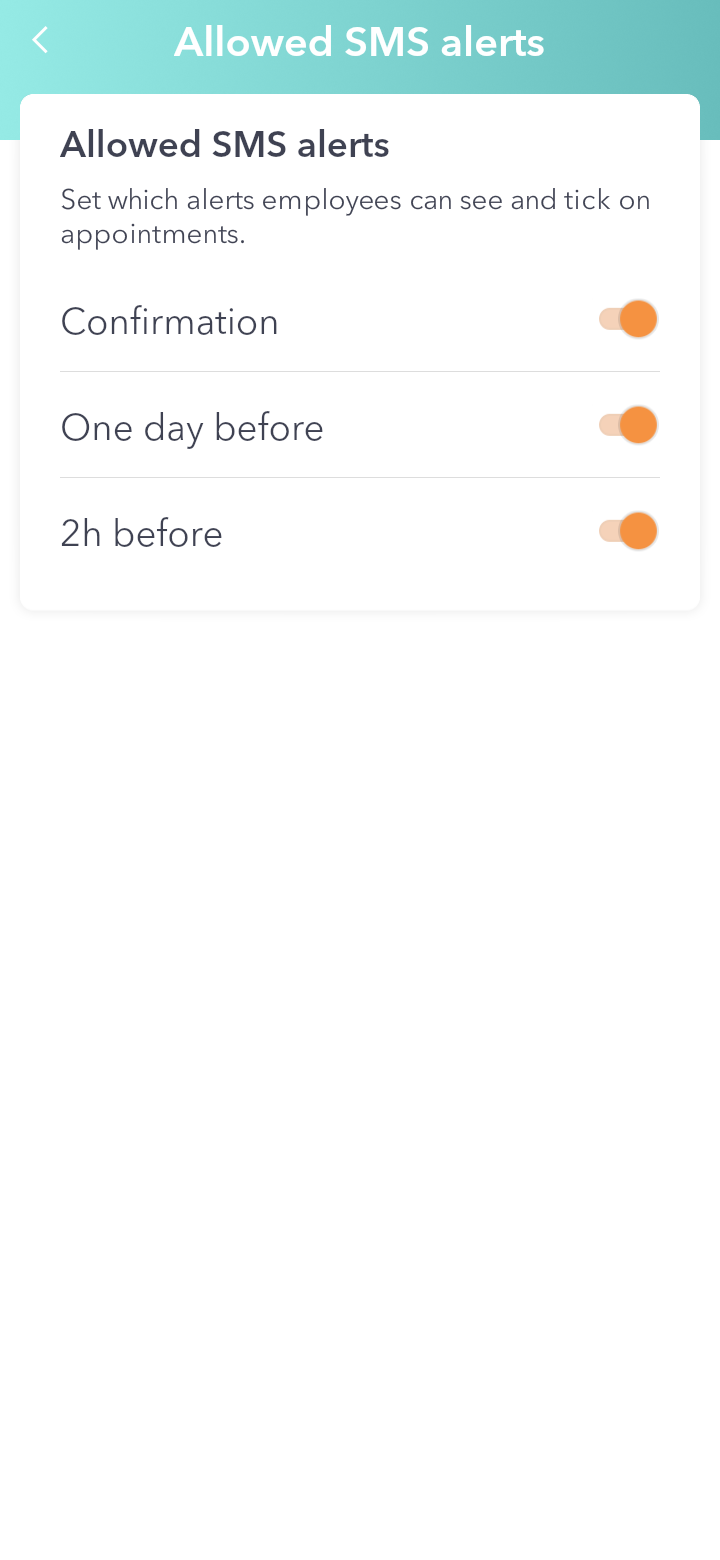
Step 2 — What's ticked on a new appointment
Also in Settings, tap Default SMS alerts and turn on the alerts you want ticked in advance when you add an appointment. You can still change them on each appointment.
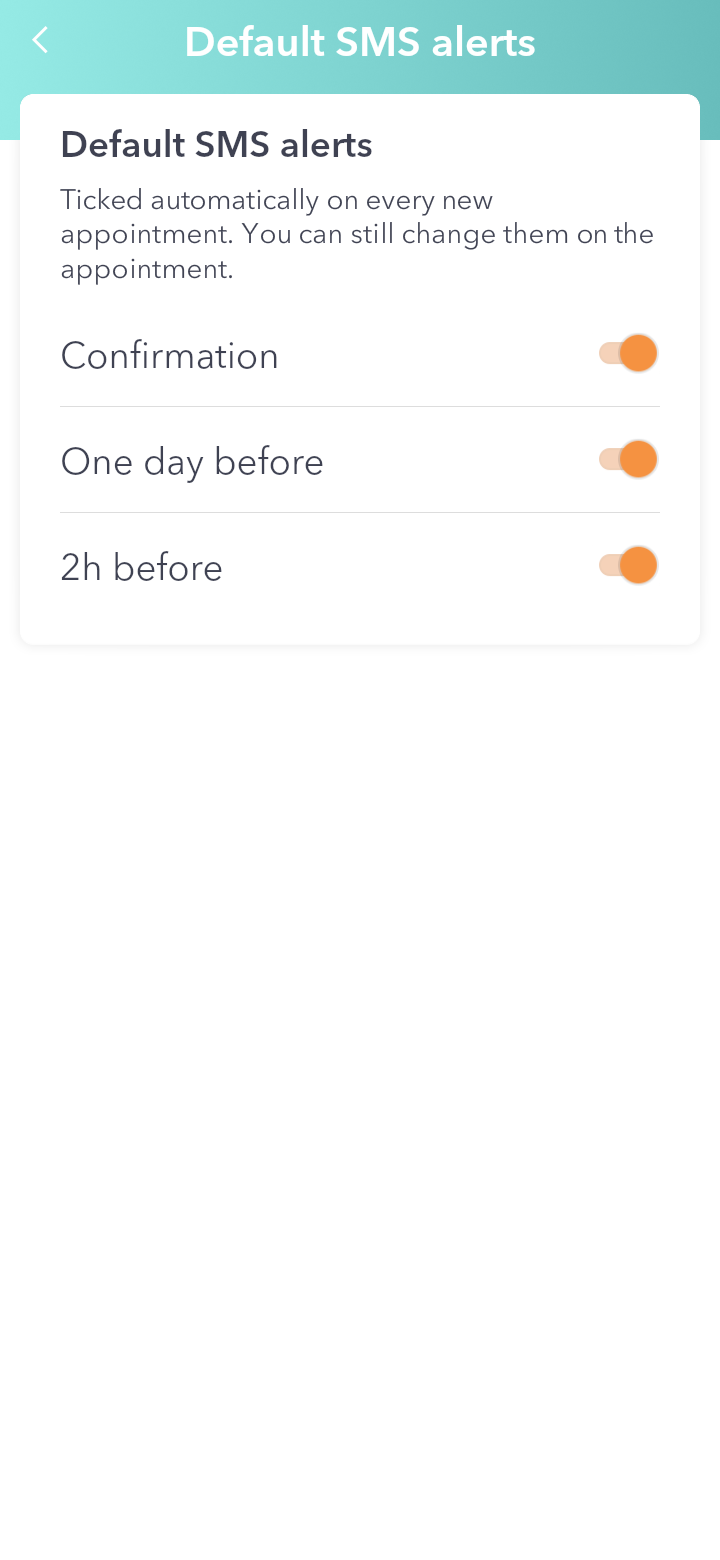
Good to know: an alert that's off in Allowed SMS alerts is not sent from the account, even if it's ticked on an appointment. Your choices are kept and apply again once the alert is turned back on.