
 English
 Română
 Español
 Magyar
Your Zen Agenda appointments can also show up in the phone's calendar, yours and your staff's. You still change them in Zen Agenda, and the calendar updates by itself. Only the account owner can set this up.
Step 1 — Open the setting
Open the menu, go to Settings and tap Google & Apple Calendar.
Step 2 — Google Calendar
Tap Connect Google Calendar and pick your Google account. Each staff member gets their own calendar in Google, "Agenda" followed by their name, updated right after every change. Sync now sends everything again if you want to be sure.
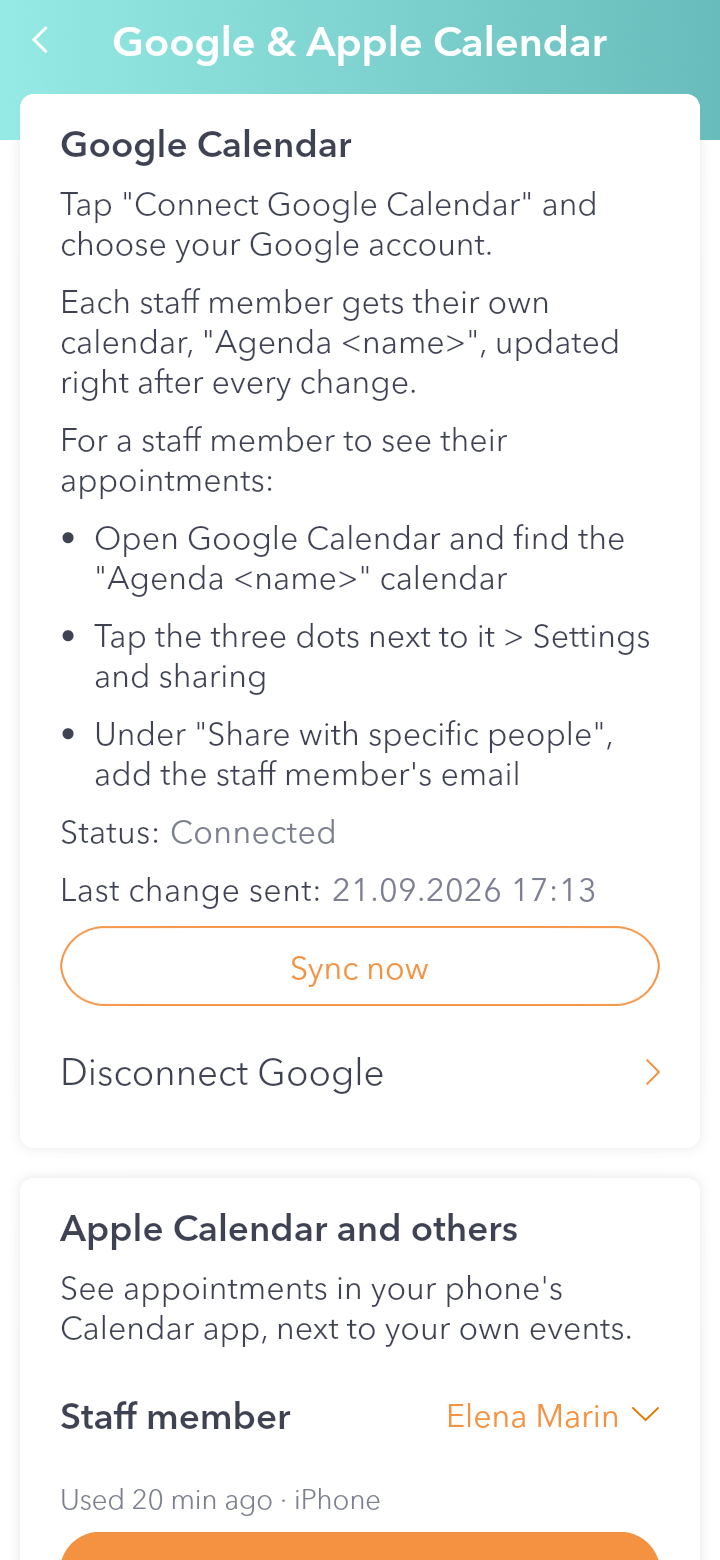
Step 3 — Show a staff member their calendar in Google
In Google Calendar, tap the three dots next to the staff member's calendar, choose "Settings and sharing" and add their email under "Share with specific people". This also works on Android.
Step 4 — iPhone, Mac and other calendars
Scroll down to Apple Calendar and others and pick the staff member. If it's not on yet, tap Turn sync on. On your own device, tap Add to my calendar. For the staff member, use Send the link to the staff member: they get the link on WhatsApp, tap it on their iPhone and choose "Subscribe".
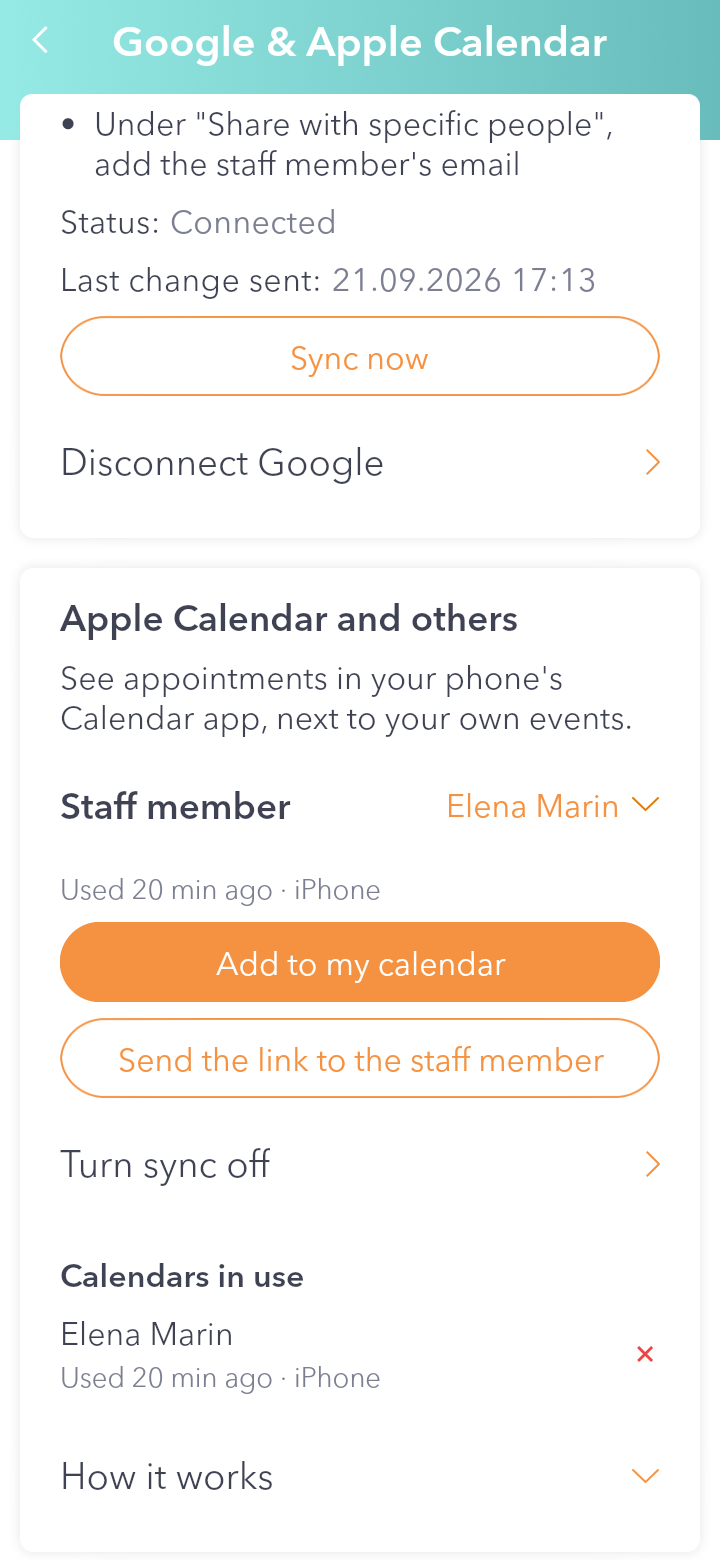
Good to know: on an iPhone the calendar fetches the appointments by itself every now and then, usually within an hour, so a new appointment doesn't show up instantly. Anyone with the link can see that staff member's appointments. If the link reached the wrong person, tap Turn sync off: the old link stops working, and when you turn it back on you get a new one.